
VPNbase.NET — This article will give you a complete but short tutorial about How to Use a VPN on the Mozilla Firefox Browser.
Mozilla is a browser that you can use to access the internet. This browser is very popular from then until now.
Besides being light for browsing, mozilla also has a VPN feature. You can activate VPN on mozilla and you can use it for free.
VPN on mozilla will not be active if you don’t activate it manually.
We all know that using a VPN aims to change the ip address and can open blocked sites if you use a regular ip address.
How to Use a VPN on the Mozilla Firefox Browser
For those of you who want to use the default VPN from the Mozilla browser, you can follow the steps below.
- Open the Mozilla Firefox browser, then click the three lines in the top right.
- Then click or select on the add-ons menu.
- In the search field at the add-on menu, just type “Browsec VPN“.
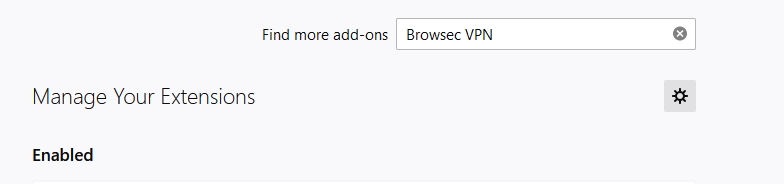
- You will be directed to a new tab on the official mozilla VPN site.
- On this site you will immediately get a mozilla firefox VPN.
You also need to know that the VPN provided by mozilla firefox is not completely free. If you are using a free Mozilla VPN, there may be limitations, such as VPN country, VPN speed and so on.
However, if you subscribe to premium, you will get all the full features of the Mozilla Firefox VPN.
So, if you need the complete features of this mozilla VPN, you have to subscribe to a premium.
Closing
With the tutorial that we have provided above, you can use a VPN on the mozilla browser without the help of any application for free. You can apply this to Windows and Smartphones.